Versioning and workflows
PDF to Link Tools Compared: Choose by What a Recipient Needs
Compare Google Drive, Adobe Acrobat, SharePDF, TrackPDF, Link in Seconds and PDF to Link by viewing, access controls and follow-up.
Choose the tool by the job after upload. Use a tool your recipient already has if they simply need to see the file. Choose a dedicated viewer if you need an expiring link, reader activity, or a shorter handoff. Choose a proofing tool if you need a decision attached to the exact PDF. Those are three different outcomes.
Pick your scenario before comparing prices
- A colleague already in your organization: start with Google Drive sharing if the file already lives there. Decide between restricted access and anyone-with-the-link access before sending.
- A PDF review in Acrobat: Adobe’s PDF sharing instructions describe web viewing and review from a copy link. Check whether the recipient needs to identify themselves for the task you want.
- A branded, reusable portfolio or menu: SharePDF lists a free tier with link, QR, embed and view counts. Pay attention to the file and active-document limits rather than assuming every feature is free.
- An occasional tracked send: TrackPDF documents free analytics with a short retention period and paid extensions per PDF. Expiry is part of the decision if the recipient may open it later.
- Multiple types of file: Link in Seconds covers more than PDFs and documents same-link PDF replacement. Its current settings docs say password and expiry controls are available on every plan; verify file and storage limits independently. If those controls decide your purchase, compare them directly rather than assuming both services charge for them.
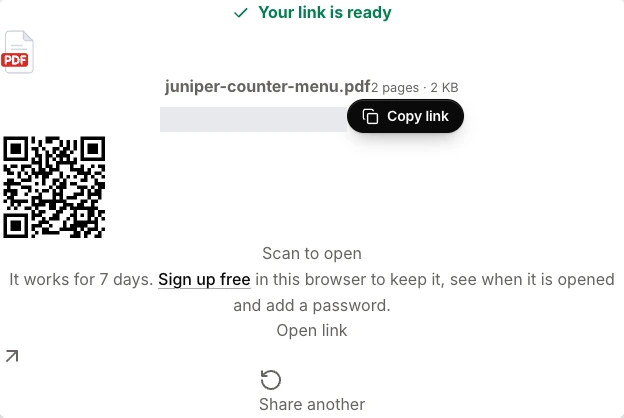
- A PDF-only upload and reader without a new account: use PDF to Link. An anonymous share has a seven-day life and guest size limits; make an account first if you need to manage links later. Advanced controls, including same-link replacement, are paid in the current app.
Run your own comparison in ten minutes
Use a harmless two-page document with a visible title and date. Upload the same file to the two options you are considering. Create the least permissive link that still lets your intended recipient read it. Open each link as a recipient in a private tab, then check the actual phone experience, reader sign-in, visibility of Download, and whether the link still works after expiry. If tracking matters, open it once with a recipient test browser and see which event the sender gets. If accuracy matters, repeat after replacing the PDF.
This guide describes each vendor’s published workflow, not a claim that every hosted plan was tested. We make PDF to Link; the alternatives are better for some jobs.
Questions and answers
What is the best free way to turn a PDF into a link?
If it is already in Drive or Acrobat, try its share button first. If you need a fresh short link and browser preview, use a PDF-specific uploader and check how long the free URL stays active.
Is a PDF link more private than an attachment?
Not by default. An unrestricted link can be forwarded, while restricted links can add access checks and be revoked for future access. Neither can recall a downloaded copy.
Does a document link preserve existing accessibility?
The underlying PDF still needs readable text, structure and contrast. A browser viewer’s keyboard behavior and assistive technology support also vary. Test both the exported PDF and the recipient page.
Do I need a proof approval product?
Only if you need a record of who approved which version. If you only need a count of opens, a simpler sharing tool may be enough.