Versioning and workflows
How to Share a PDF Print Proof and Track the Version Approved
Use a clear revision label, save an approval against the exact file, and avoid sending an outdated proof to production.
A print proof view is not an approval. Keep the exact PDF the customer saw, label the revision in the file, and record the decision against that revision. If you change the design after the client replies, get a new decision before printing unless your agreed process expressly covers the change.
Keep a copy of the exact file
Give the proof a job identifier and visible revision: for example, “POPPYSEED label · Job 2041 · Proof v2.” Save the actual reviewed PDF, not just the editable source or an email screenshot. If your process uses a file hash, store it with the timestamp, reviewer, approval text and file name. A hash can help show that two files match; it does not prove who approved the file or what their authority was.
Send and replace without carrying approval forward
- Export proof v1. Add the revision to the proof itself and include the few things the customer should check, such as wording, dimensions and dieline position.
- Open the recipient link yourself before sending. In an email, ask for approval or a list of changes by a named date.
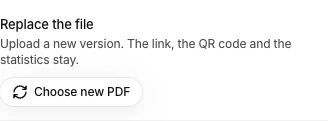
- Export v2 when changes are needed. Save it as a separate original file. If you replace the PDF behind the same viewer link, use a private tab to confirm that it opens v2.
- Ask for a new approval that explicitly names v2. A response from an already-open v1 tab remains a response to v1, not approval of the current PDF.
- At handoff, cross-check the approved version, the print-ready PDF and its separately attached job spec.
One print handoff, two different links
Try this with the fictional PARITY practice PDF. In PDFImpose’s Prepress Inspector, Copy share link sends preflight findings, not the PDF itself. Label it “Preflight findings” so the shop knows which file to fix. Separately share the clean proof PDF in a viewer and label it with the revision you want approved. If you send a marked diagnostic proof, tell the recipient not to print from that file.
A short handoff can say: “Findings: check trim and bleed. Proof rev 2: check the printed title and approve this revision by reply.” That gives each person the right artifact and keeps a view event from being mistaken for approval.
When to use a fixed review link
If the review is the record, a link that always opens a fixed snapshot is easier to reason about. DielineMaker’s revision guide documents captured review links and separate approval history. Proofavo’s manual describes keeping one project link while recording the exact file version approved. Those are two valid models. The current PDF to Link viewer can share a PDF and paid plans can replace it; it does not run an approval workflow or collect an approval signature. Use a reply email or a dedicated review system to record the decision.
Questions and answers
Is an open enough to start printing?
No. An open only shows activity on a link, and may not identify the person. Wait for the explicit approval required by your job process.
Can I reuse the same link after the customer requests changes?
Yes, if the viewer supports replacing the file under the same link. Tell the customer what changed, name the new revision, and request approval again.
What if the customer replies that the old file looks good?
Record the response on the old revision or ask for clarification. Do not silently apply it to the newest version.
What file should the shop retain?
Keep the exact reviewed PDF, the matching decision or approval log, and the separately cross-checked production PDF and specifications. Keep personal details only as long as your workflow requires.